The last post was a lot to take in, especially if you're new to Hyprland and its ecosystem of utilities. Believe me, I struggled with it as well. It's best to take your time, experiment, break things, and then come back to it. While many dotfiles repositories are available online, understanding your own configuration makes it easier to understand and adapt other setups when inspiration strikes.
Dotfiles are hidden configuration files used to customize your environment. They are called dotfiles because they begin with a dot. By default, the ls command won't list them unless you run ls -a. Some common examples include: .bashrc, .zshrc, .gitconfig, and .tmux.conf.
The real headache begins when you change workstations and need to rebuild your entire environment from scratch. By maintaining a central folder synced to GitHub or Forjego, you can keep your configuration consistent across machines. This is accomplished using symbolic links, aka soft links/symlinks. A symlink is a pointer to a target file or directory. It can be thought of as a "shortcut" like in Windows.
Terminology
Understanding basic terminology helps clarify how everything fits together. A symlink is a reference to another path (file or directory). To dereference a symlink means to follow that reference until the actual file or directory is reached. Consider the path:
a/b/c
- a/b is the dirname
- c is the basename
If a symlink appears anywhere in the dirname component, the system automatically dereferences it. For example, consider the path: ~/.dotfiles/hypr/.config/hypr/hyprland.conf. If the hypr directory is a symlink pointing to ~/.config/hypr, the kernel transparently resolves (dereferences) the link and continues searching for the basename, hyprland.conf.
Note: If a symlink target is moved, renamed, or deleted, the link becomes broken. Both absolute and relative paths can be used, but relative paths are often more resilient when reorganizing files. All file operations act on the target, not the link itself.
Folder Configuration
Before deciding whether to manually manage symlinks, use GNU Stow, or rely on any other tool, your folder structure matters. Manually creating symlinks gives you complete control over organization, rather than following Stow's prescribed layout.
My current setup uses a small number of symlinks, but I still follow the folder structure recommended by Stow. This gives me flexibility: if manual tracking syminks becomes too burdensome, I can switch fully to Stow with minimal effort.
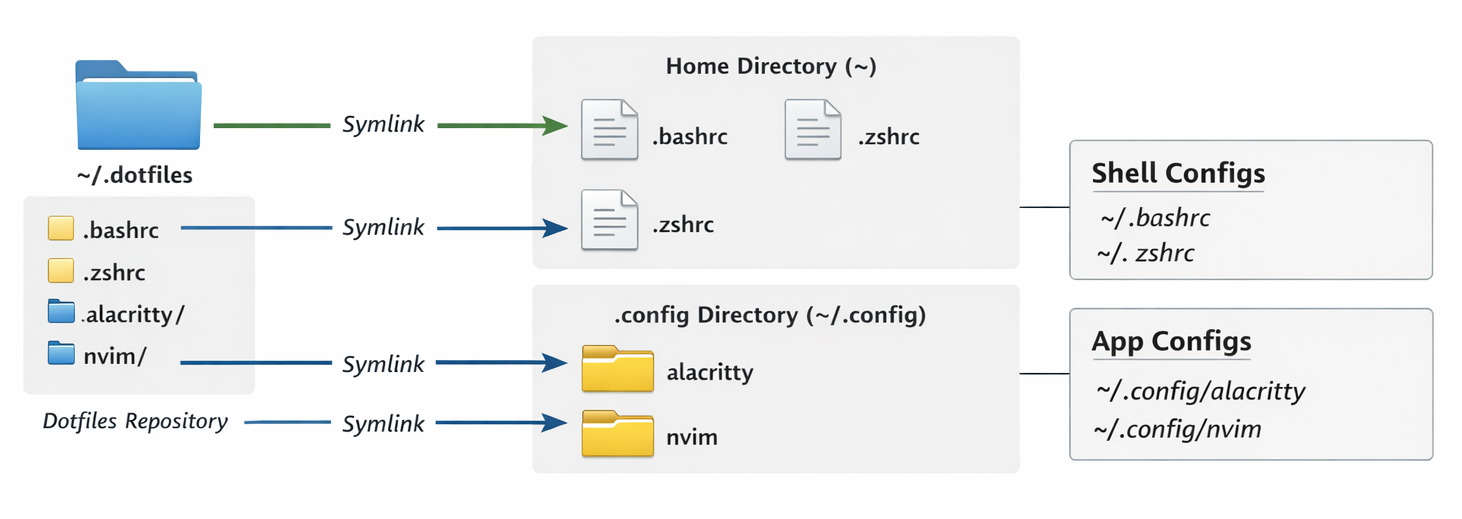
Manual Symlinks
A major advantage of manually symlinking is that no additional software is required. My workflow is designed so that switching laptops gets me up and running quickly, and exactly how I like it. You can create relative or absolute symlinks. In the examples below, I use the hypr directory and .bashrc to demonstrate both directory and file symlinks. I've also set XDG_CONFIG_HOME = $HOME/.config.
# Symlink format
ln -s "target_path" "link_path"

# Target directory
~/.config/
└── hypr/
    ├── hyprland.conf   → ~/.dotfiles/hypr/hyprland.conf
    ├── hypridle.conf   → ~/.dotfiles/hypr/hypridle.conf

# Folder and file examples
ln -sf "$HOME/.dotfiles/hypr/.config/hypr" "XDG_CONFIG_HOME"
ln -sf "HOME/.dotfiles/bashrc/.bashrc" "$HOME/.bashrc"
GNU Stow
GNU Stow was originally created for software package management, but evolved into a configuration management tool. Stow is a symlink farm manager, meaning it uses symlinks to make files and directories appear in one location even though they're stored elsewhere on the filesystem. The stow directory serves as the root of the file tree. When Stow is ran, it uses the current directory as the default directory. The destination directory must already exist, as Stow will not create the directory. Stow only creates relative symlinks.
Key concepts:
- Package: A collection of files or folder administered as a unit.
- Target directory: Where the package appears to be installed.
- Stow directory: Where all packages are stored.
- Installation image: The layout of files/directories needed by the package relative to the targer directory.
- Package directory: A directory inside the Stow directory containing a package's installation image.
For example, running stow hyprfrom inside ~/.dotfiles creates symlinks at ~/.config/hypr/. The files appear to reside there, but the actual data remains in ~/.dotfiles, making the setup portable across machines.
~/.dotfiles/              ← Stow directory
└── hypr/                 ← Package
    └── .config/
        └── hypr/         ← Installation image
            ├── hyprland.conf
            ├── hypridle.conf
            ├── hyprpaper.conf
            └── hyprlock.conf
After running stow hypr from inside ~/.dotfiles.
~/.config/hypr/
├── hyprland.conf   → ~/.dotfiles/hypr/.config/hypr/hyprland.conf
├── hypridle.conf   → ~/.dotfiles/hypr/.config/hypr/hypridle.conf
├── hyprpaper.conf  → ~/.dotfiles/hypr/.config/hypr/hyprpaper.conf
└── hyprlock.conf   → ~/.dotfiles/hypr/.config/hypr/hyprlock.conf
Verifying Symlinks
Once symlinks are created, manually or via Stow, you can confirm using ls -l. Symlinks appear with a leading l in the permissions field (e.g., lrwxrwxrwx). You'll also notice the length of the symlink is 48 bytes compared to the target directory, 4096 bytes.

Removing Symlinks
To remove symlinks, use rm or stow -D if you're using Stow. Removing the link does not affect the target file. But, deleting targets can leave broken links behind.
# Remove symlinks manually
rm .bashrc

# Remove symlinks via Stow
stow -D bashrc
Github Setup
To move seemlessly between machines, hosting your dotfiles on Github or Forjego dramatically improves your workflow. Clone your repository, install Stow, run your setup script, and your environment is restored. I recently wrote my first setup script. While it's far from perfect, it works. It currently supports both Stow and manual symlinking, allowing me to comment out whichever approach I don't want to use. Check out my install script.
Closing Thoughs
Manually symlinking files and folders feels intimidating, but once you understand how it works, especially through visuals, the process is straigh forward. While GNU Stow is a powerful too, my current setup is pretty minimal. For users managing larger or more complex configuration, Stow quickly becomes invaluable. In the end, it comes down to comfort and personal preference. What matters the most is learning how to organize, version control, and deploy your dotfiles reliably. This post only scratches the surface. For a deeper understanding, refer to man symlinks and man stow for deeper insight and configuration options.